Submitting OneDrive Assignments in Canvas
Students can submit assignments to Canvas directly through the Microsoft Education app.
- Navigate to your assignment in your Canvas course.
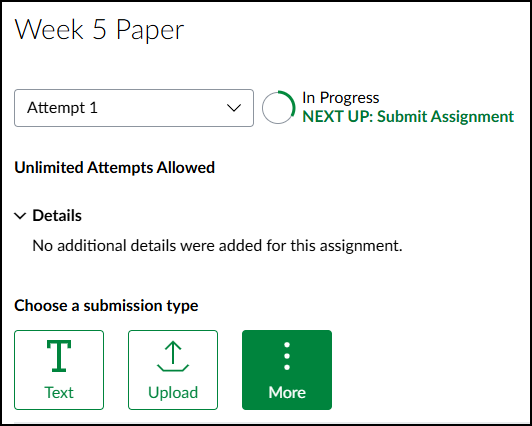
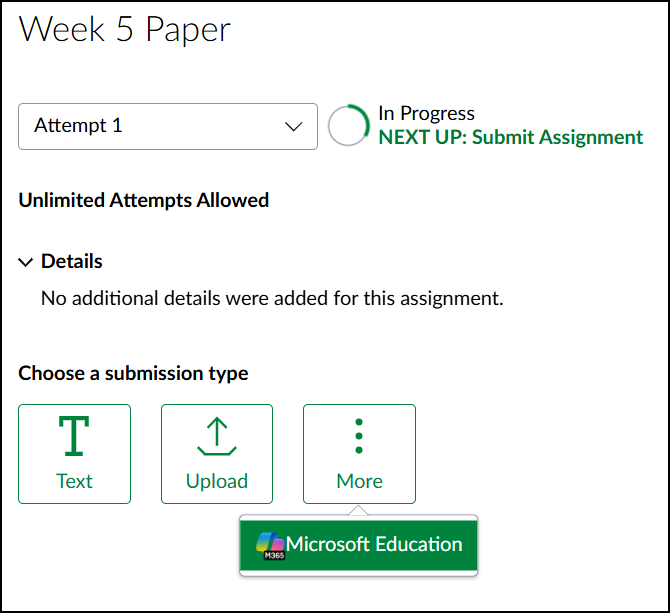
- Below your assignment directions, you will see your submission options. Select the More button, then click the Microsoft Education tab.
- If you have not logged into your Microsoft account in Canvas yet, you may be prompted to sign in using your MyWilmU credentials. Once logged in, find the file to submit and select the circle icon next to the file, then click the Submit button. The window will briefly change to show the file upload progress.
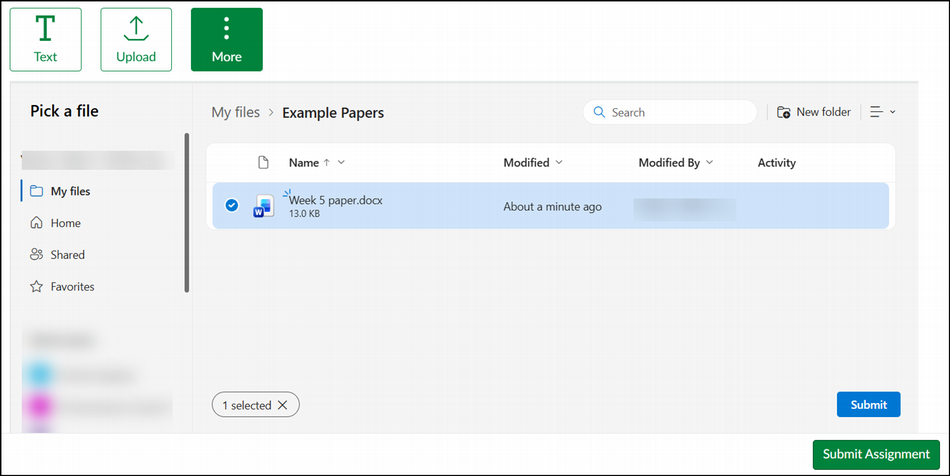
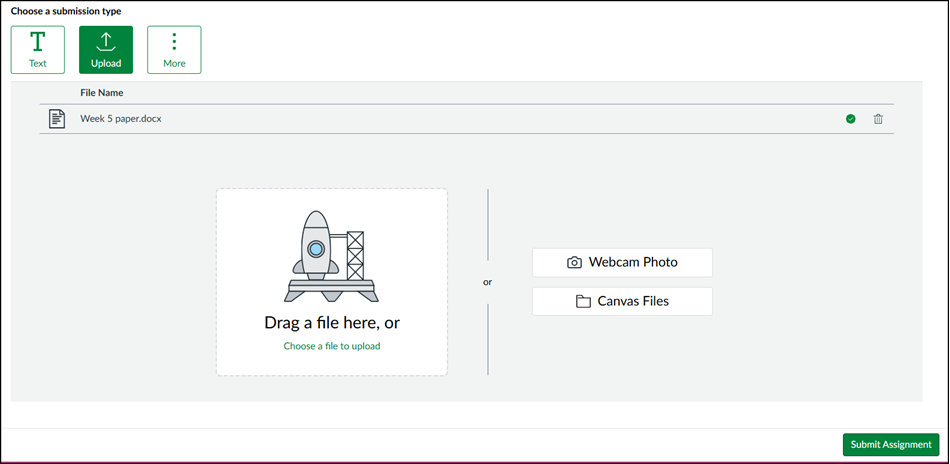
- Once completed, the file will appear with the file name. You may now click the Submit Assignment button.
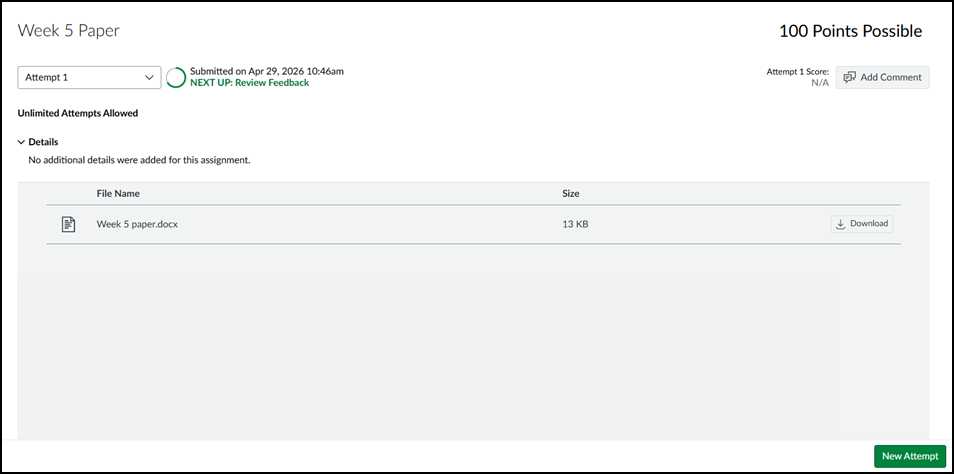
- Once completed, you can see your assignment submission with the file name and the timestamp of your submission.