
Micro-Lectures
- Micro-Lectures That Make a Difference
- What is a Micro-Lecture?
- Create a Micro-Lecture Video
- How to Embed a Micro-Lecture Video on a Micro-Lecture Page
- Additional Support
Micro-Lectures That Make a Difference
What is a Micro-Lecture?
Create a Micro-Lecture Video
How to Embed a Micro-Lecture Video on a Micro-Lecture Page
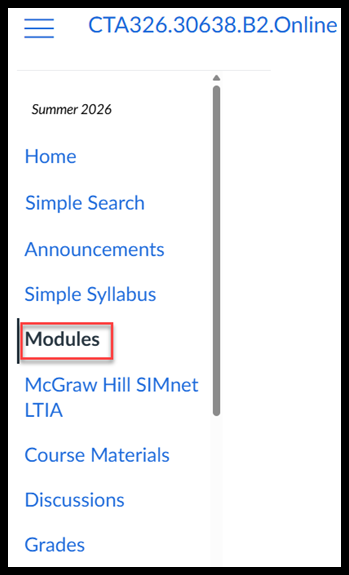
- In your Canvas course, click Modules in the Course Navigation menu.
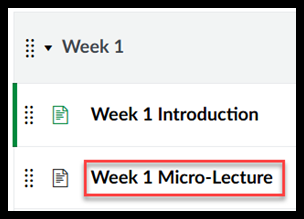
- Scroll down to the weekly module containing the micro-lecture page you want to edit, then click the page title to open it.
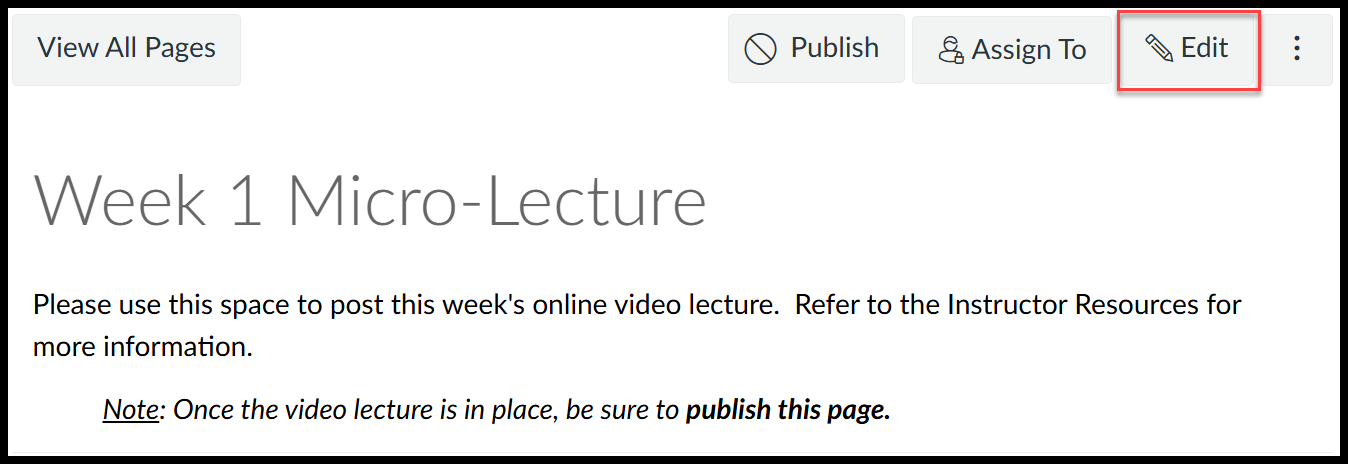
- Click Edit.
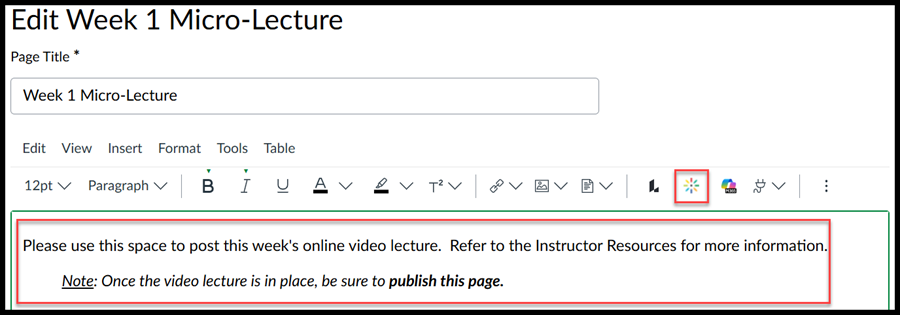
- In the Rich Content Editor, delete the placeholder text for the micro-lecture. Then, click the Kaltura icon to open the Kaltura media tools.
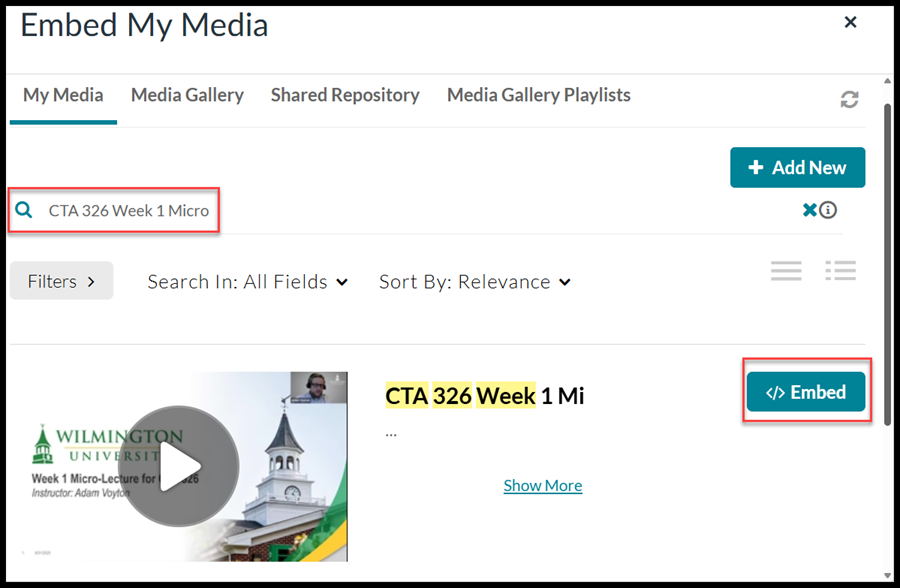
- Locate the appropriate micro-lecture video in your Kaltura media gallery, or search for it by name. Then, click Embed.
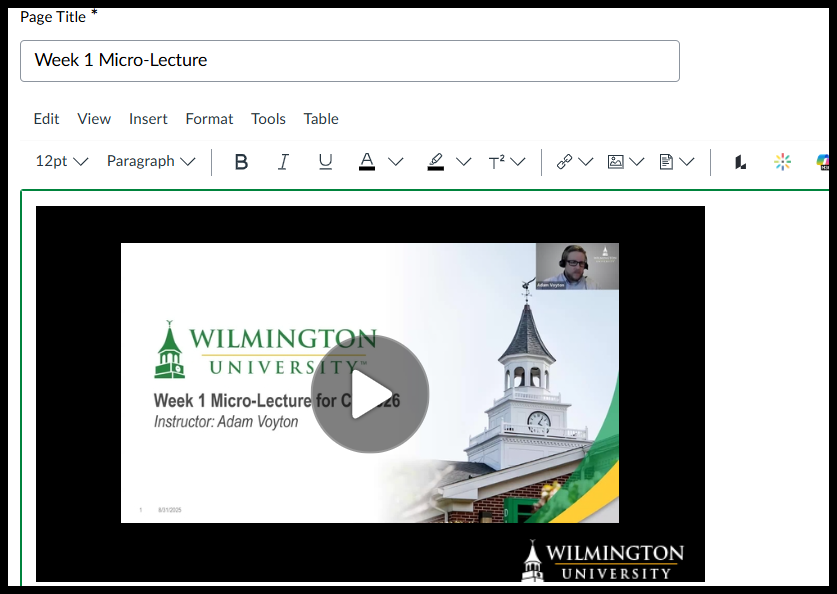
- Wait a few moments while Kaltura retrieves and embeds the selected micro-lecture video into the page's Rich Content Editor. Once the process is complete, the video will appear in the content area, where you can preview it by clicking the Play button.
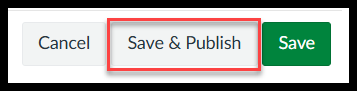
- Scroll to the bottom of the page, then click Save & Publish to save your changes and make the updated micro-lecture page available to students.
Additional Support
You may view additional micro-lecture video samples in the Faculty Assistance course in Canvas. Instructors may access the Faculty Assistance course through the Instructor Resources Module. This unpublished module is located at the top of the Modules page in all instructor's courses in Canvas.
For additional support in creating your micro-lectures, please contact the Center for Teaching Excellence at facultydevelopment@wilmu.edu.